THE CENTER FOR TEACHING, LEARNING, AND ASSESSMENT @CGCC
  • Instructional Design
    • Course Planning & Design (IDR)
    • Backward Design
    • ID Fellows
  • Instructional Technology
    • Accessible Course Design
    • Canvas
    • Cisco Webex
    • Concourse Syllabus Training
    • Google@CGCC
    • Respondus
    • ScreenPal
    • TurnItIn
  • Teaching & Learning
    • Regular & Substantive Interaction
    • Accessibility Lab (SAL)
    • Be an Effective Teacher
    • Base Camp
    • Gear Up
    • Hybrid Summit
    • Accessibility Peak
    • Teaching & Learning Blog
    • Workshops
  • Assessment
    • Assessment Resources: Templates and Tools
    • HCA Guides
    • Learning Outcomes at CGCC
  • About Us

Teaching & Learning Blog

Tips to Organize Your Google Drive

1/31/2023

0 Comments

 
Picture
Picture
Tips to Organizing your Google Drive
Picture

​Google Drive - is a cloud-based file storage system. Like any other storage system, it can easily become messy and disorganized, making it difficult to find the items you are looking for.
​


1. Start with Decluttering: Trash or Treasure?
Removing old files is the best place to start. Don't waste time organizing things you will not use again or have multiple copies of.
  • Going through your Drive storage first will give you a really good sense of what you have created and collected and what NEEDS to be organized.
  • Make sure to go through "My Drive" and "Shared with me".
  • It helps to have a pen and paper in hand to take notes of the types of folders you think you need.


To Delete Items
  • Right-click (or control-click) on the item
  • Select Remove
Picture

2. Create Primary Folders & Subfolders
One of the best ways to organize documents is to create folders to group similar types of files together.

Create Primary Folders
  • Start with big categories (similar to a file cabinet drawer).
  • For example, create folders for courses, committees, or project you are working on.
  • More folders does not equal better organization.
  • Place all items related to that category into that folder.

Create a Subfolders
  • Create subfolders within each primary folder (similar to files within the drawer).
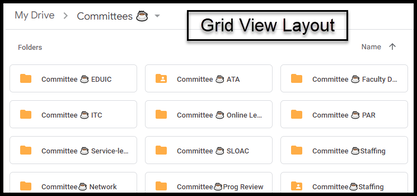
  • For example, create a folder for each committee you serve on. Nestle all of those committee folders into the primary Committee folder.
Picture
Picture

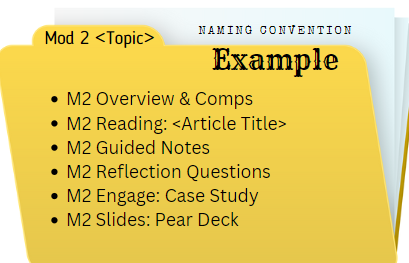
3. Label Consistently
  • Keep file names short and meaningful.
  • Consistency is key.
  • Think about how you will search for this item in the future.
  • Avoid special characters.
  • Document your file naming convention.
  • Do what works for YOU!
Picture

Organizing your Drive Visually:
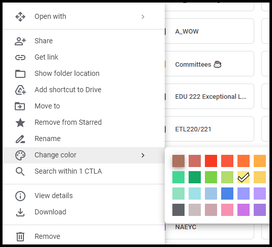
It's All in the Right-Click (or Control-Click) Menu
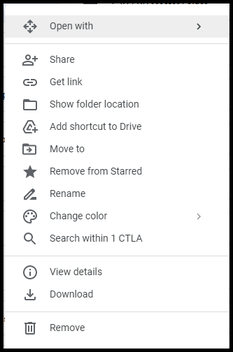
There are so many features to support folder and file organization in Google Drive. Check out some of these
options by right-clicking (or control-clicking) on a folder to
get the pop-up menu to the right.

By default, Google Drive organizes folders in the following order:
  • special characters
  • images
  • numerical order
  • alphabetical order
Picture

4. Color-Code Folders
Many of us are highly visual. Adding color to folders adds visual appeal and can help you quickly sort and identify the files you need faster. By default, folders are grey.

To Change the Color
  • Right-click (or control-click) on the folder
  • Go to the pallet & Change color
  • Select from the 24 colors options
Picture

Picture
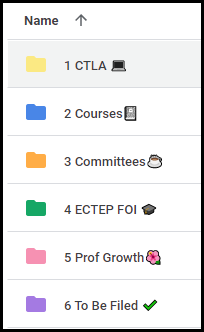
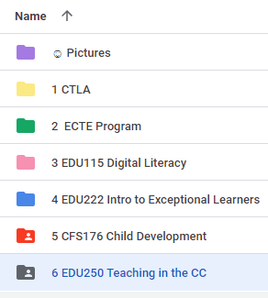
5. Number Folders
Folders are organized alphabetically, meaning some of your most-used folders may end up at the bottom of the pile. Because numbers are recognized before letters, numbering folders is a great way to keep the most important ones at the top, regardless of the name.

To Add a Number
  • Right-click (or control-click) on the folder
  • Go to the pencil & Rename
  • Add a # before the title

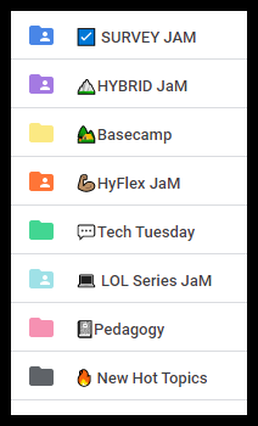
6. Add an Icon or Emoji
To enhance the visual appeal even more and take your organization to the next level, add an Icon or Emoji to your Label.

Search to find the perfect emoji for your folder or other projects at one of these open source sites:
  • Openmoji
  • Emojipedia
  • Pixabay (search "emoticons")

To Add an Icon or Emoji
  • Find your favorite Icon or Emoji and copy it to your clipboard.
  • Right-click (or control-click) on the folder
  • Go to the pencil & Rename
  • Paste the emoji where you want it in the title
Note - Google automatically adds the little person icon onto shared folders.
Picture

Picture
7. Star Folders
No time to find an Emoji or Icon, yet you want to highlight an important folder? Try adding a star. Add a star to files you use most often, it is somewhat like bookmarking them. When searching, you can search specifically for starred items.

To Add a Star
  • Right-click (or control-click) on the folder
  • Go to the star & Add to Starred
Organization Takes Time, but it Enhances Productivity
As you create or save new files, move them immediately into the appropriate folder, or create a new folder if needed. Do what works best for you and your content, no one organizes content exactly the same and your organizational needs may change over time. Please don't hesitate to reach out to the CTLA if you would like more suggestions! Happy Organizing!!!

Picture
Share Your Ideas
If you have other creative ways to organize Google Drive, please let us know at: [email protected]. For upcoming Tech Tuesdays, we will be calling on faculty to share experiences and examples. If you have an idea to share, please contact us at [email protected] and
[email protected] and we will follow up.

​Your Faculty Liaisons, Jen & Vanessa
0 Comments

Your comment will be posted after it is approved.


Leave a Reply.

    Picture

    Categories

    All
    Accessibility
    Asynchronous (Fully Online) Courses
    Audio
    Canvas
    ChatGPT
    Cisco Webex
    Communicating With Students
    EdTech
    Faculty Development
    Free
    Google
    Graphic/Course Design
    Hybrid Teaching
    Hyflex
    Instructional Technology
    Interactive Tools
    Live Online... Live
    Multiple Attendance Options
    OER
    Policies
    Professional Development
    Teaching Tips
    Tech Tuesday
    Video

    Author

    Awesome people who want to help you do awesome stuff in the classroom! Join the conversation here or in our Facebook Group: CGCC Center for Teaching, Learning, and Assessment 

    Archives

    February 2025
    November 2024
    October 2024
    September 2024
    March 2024
    February 2024
    January 2024
    October 2023
    September 2023
    August 2023
    May 2023
    April 2023
    March 2023
    February 2023
    January 2023
    December 2022
    November 2022
    October 2022
    September 2022
    August 2022
    May 2022
    April 2022
    March 2022
    February 2022
    January 2022
    December 2021
    November 2021
    October 2021
    September 2021
    August 2021
    July 2021
    May 2021
    April 2021
    March 2021
    February 2021
    January 2021
    December 2020
    November 2020
    October 2020
    September 2020
    August 2020
    May 2020
    April 2020
    March 2020
    February 2020
    January 2020

    RSS Feed

The Center for Teaching, Learning, and Assessment
Chandler-Gilbert Community College


Topics

Adjunct Faculty
Canvas
Help & How to Guides
Staff Resources
Workshops
Assessment

Support Hours

Fall 🍁 and Spring 🌸
Monday - Thursday: 9am - 5pm
Friday: 9am - 4pm

Summer ☀️
Monday - Thursday: 8am - 4pm

Contact Us

Phone: 480-726-4245
Email: [email protected]
Pecos Campus: MSQ150

After Hours Assistance

Maricopa IT After Hours Chat 
Support Line: 1.888.994.4433
Submit a ticket to [email protected]

Picture
Submit a Request for Assistance
Request for Cross-listing/Combining Canvas Courses
CTLA Compliance Notice 
© Chandler-Gilbert Community College, 2025.
  • Instructional Design
    • Course Planning & Design (IDR)
    • Backward Design
    • ID Fellows
  • Instructional Technology
    • Accessible Course Design
    • Canvas
    • Cisco Webex
    • Concourse Syllabus Training
    • Google@CGCC
    • Respondus
    • ScreenPal
    • TurnItIn
  • Teaching & Learning
    • Regular & Substantive Interaction
    • Accessibility Lab (SAL)
    • Be an Effective Teacher
    • Base Camp
    • Gear Up
    • Hybrid Summit
    • Accessibility Peak
    • Teaching & Learning Blog
    • Workshops
  • Assessment
    • Assessment Resources: Templates and Tools
    • HCA Guides
    • Learning Outcomes at CGCC
  • About Us