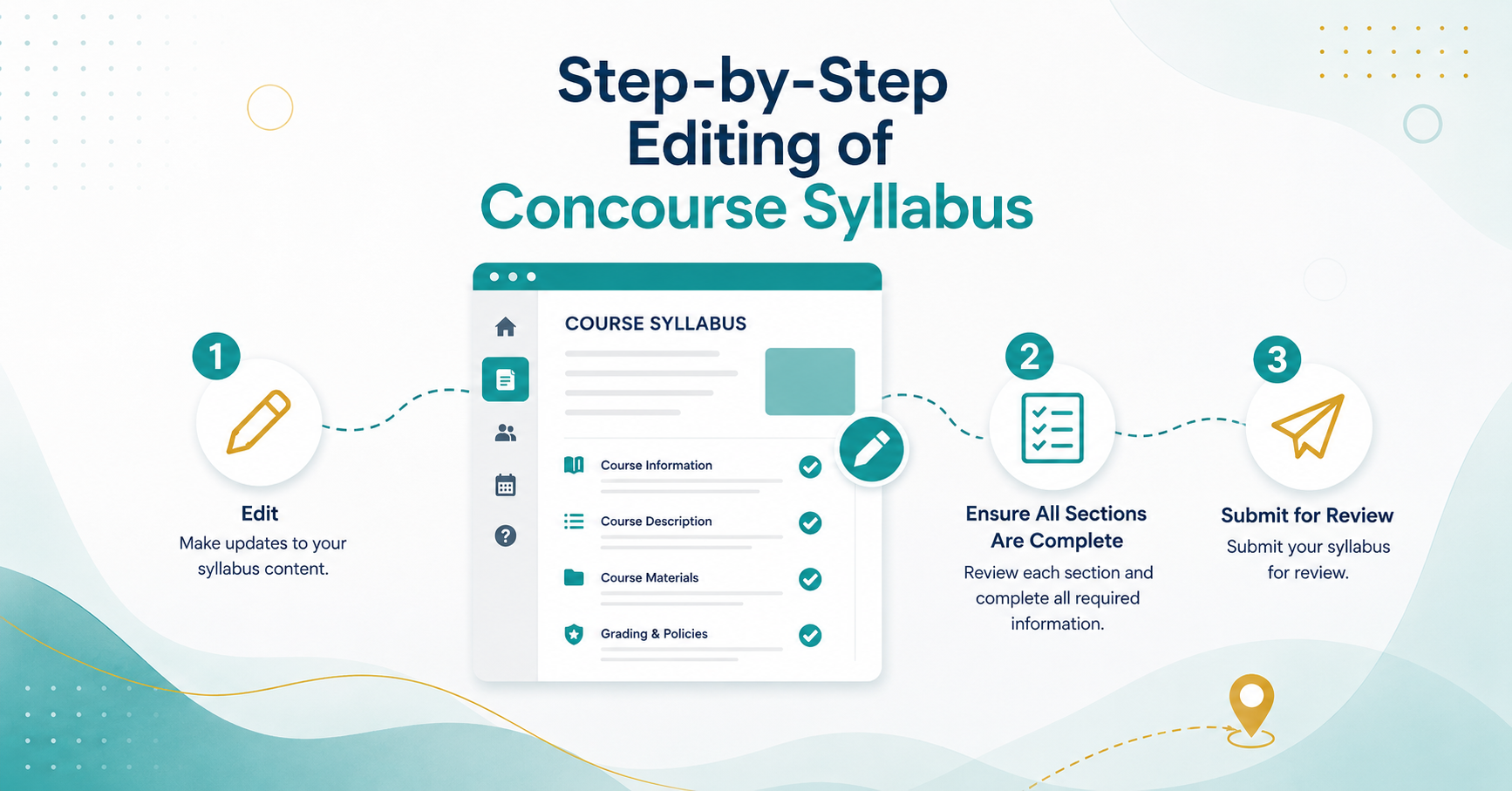
Use this page to complete and submit your Concourse syllabus for review. Most faculty will only need to follow the three main steps below.
Step 1: Open Concourse and Edit Your Syllabus
In your Canvas course, open the Concourse syllabus tool. Select Syllabus, then select Edit.
Once you are in edit mode, you will see comments throughout the syllabus template. These comments explain what needs to be added or revised in each section. Some comments also include suggested language that may be copied and pasted into the syllabus.
Helpful resources
- Guide: Accessing Edit Mode
- Video: Get into Edit mode in Concourse.
- Guide: Editing Items in Concourse Syllabus
- Video for Understanding Comments in Concourse Syllabus
Step 2: Complete the Required Syllabus Sections
Review each editable section of the syllabus and add the required course-specific information.
Use the comments in the template to guide your edits. Do not delete required sections unless you are certain they are optional and unlocked.
You may also add structured items within editable sections when needed. These fields help keep the syllabus organized and accessible.
Helpful resources
- Guide: Adding New Items in a Section
- Video: Add Structured Items to the Concourse Syllabus in Your Canvas Course
- Guide: Move Items in a Section is displayed
- Video: Move Items on the Concourse Syllabus in your Canvas Course
- Guide: Deleting Items on Concourse Syllabus
- Video: Deleting Concourse Syllabus Items
Step 3: Submit Your Syllabus for Review
When your syllabus is complete, submit it for review.
To submit your syllabus:
- Open the syllabus in Concourse.
- Select Audit at the top of the syllabus page.
- In the audit status dropdown, choose Submitted for Review.
- Enter a brief message.
- Select Update.
You do not need to send a notification.
Submitting the syllabus for review does not control whether students can see the syllabus. Students can view the syllabus once the Canvas course is published.
Helpful resources
Optional: Copy Content from Another Syllabus
If you have already completed a Concourse syllabus for the current semester, you may copy content from one syllabus to another.
When using the copy tool, select Copy next to the title of the syllabus you want to copy from. Do not select the syllabus title itself.
If Concourse does not ask you to select which sections to copy, refresh the page and try again.
Non-editable fields, such as institutional policies, will always reflect the current semester. For this reason, it is recommended that you use the current checklist or organizer rather than relying only on a past syllabus.
Helpful resources
Optional: Download The Backup PDF of Your Syllabus, Share, and Print The Concourse Syllabus
You may download a PDF copy of your Concourse syllabus for your records.
You may also use the syllabus link or embed code if you need to share the syllabus on another website or teacher page. Anyone with the link will be able to view the syllabus.
Helpful resources
Advanced Editing
Most faculty do not need advanced editing. Use these resources only if you need to add files, images, or custom formatting.
Helpful resources
For accessibility, use built-in Concourse fields whenever possible. Avoid using custom HTML unless it is necessary and has been checked for accessibility.