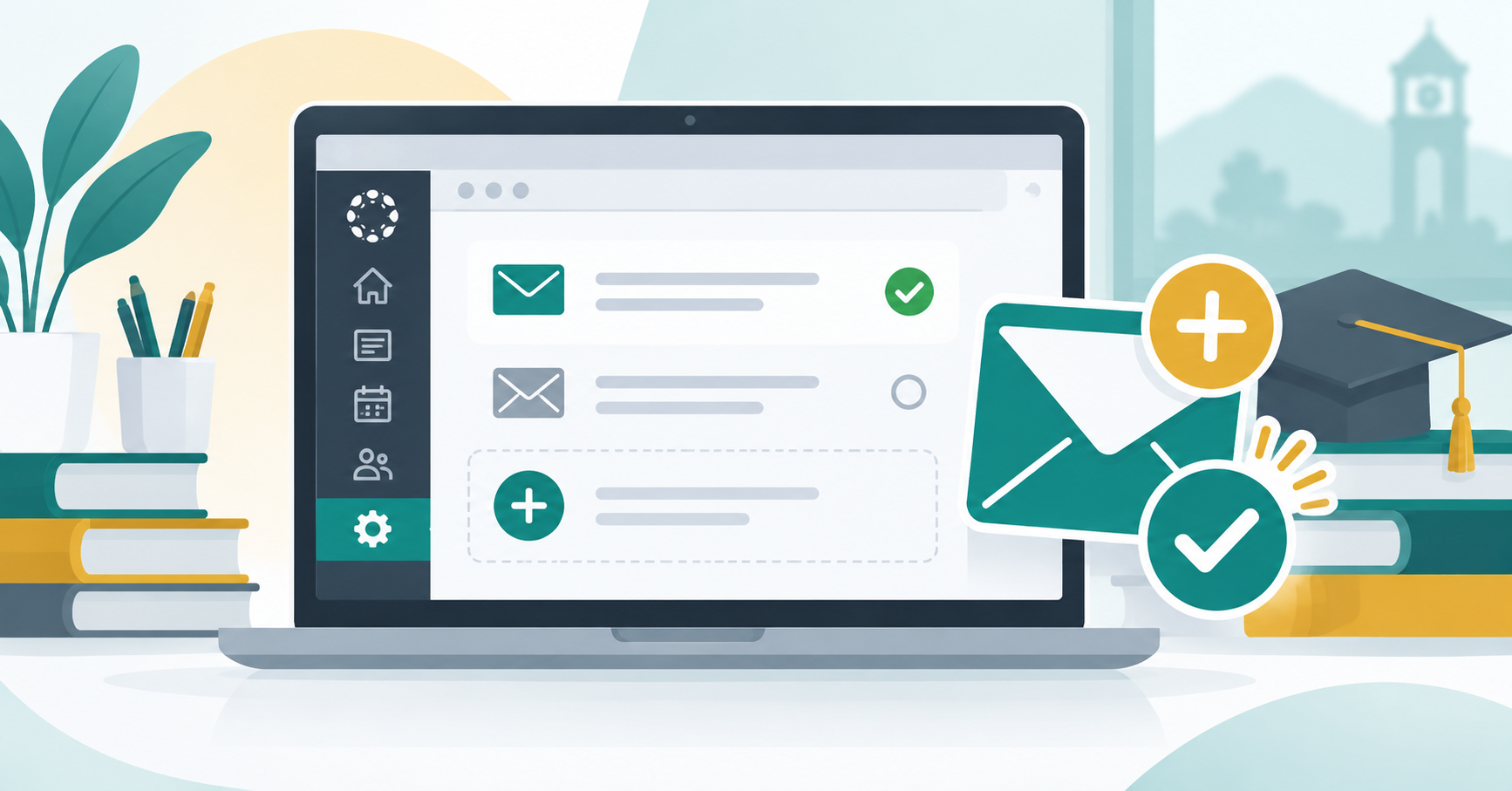
For faculty and staff, we have multiple emails as employees of MCCCD. We have our MEID@maricopa.edu and our college email address. To ensure smooth operations and notifications it is imperative to have both emails listed in your Canvas profile under settings and that those are verified.
Use the following Canvas guide and be sure to verify your email:
How do I add contact methods to receive Canvas notifications?
Verifying Your Email in Canvas: Why It Matters
If you haven’t verified your email in Canvas, you will not receive important notifications, including:
- Inbox messages
- Course announcements
- Grade postings
- For faculty: other faculty cannot find you by your email when adding you to a course.
NOTE: Even though you might not check your student/Maricopa email, please do not remove it from your account this can cause other connections to stop working.
✅ How to Check If Your Email Is Verified
- Go to your Canvas Account Settings.
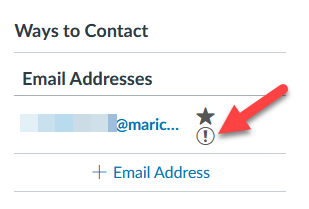
- If you see a warning symbol (indicated by an exclamation point in a circle) next to your email, it means your email is not yet verified.
- Click on the email address and select Resend Verification Email.
- Check your inbox (and spam folder) for the email and follow the instructions to verify.
📌 Related Canvas Help Guides
- How do I add contact methods to receive Canvas notifications? (this will show you how to verify your email address)
- How do I change my default email address in my user account as a student?
- How do I manage my Canvas notification settings as a student?
💡Want to use a personal email? That’s fine! Just be sure to forward your Maricopa email to your personal email so you don’t miss important messages.