This session introduces Panorama and demonstrates how faculty can use it alongside Canvas to identify and address accessibility barriers in course content.
The session begins with the WCAG 2.1 Level AA framework and the POUR principles, emphasizing that accessibility is ultimately about the student experience—not simply achieving an automated score. Faculty learn what Panorama can and cannot evaluate, how to interpret the Course Report and Issues Report, and how to identify common concerns such as color contrast, alternative text, headings, tables, captions, iframe titles, document properties, and inaccessible PDFs.
The demonstration then moves into practical remediation workflows for Canvas pages and uploaded documents. Faculty see when Panorama can help directly, when the Canvas Accessibility Checker provides additional information, and when Word, PowerPoint, Excel, or Adobe Acrobat should be used to correct the source document before replacing it in Canvas.
The session concludes with strategies for managing files, reviewing captions and transcripts, configuring Panorama settings, and using the accessibility score as a tool for prioritizing work rather than as a substitute for faculty review and judgment.
Recorded September 2026: Panorama features, interface options, institutional settings, and accessibility data shown in the recording may change over time.
Detailed Breakdown of Session
| Time | Chapter | What viewers will find |
|---|---|---|
| 00:00 | Session Overview: Panorama, Canvas, and Accessibility | Purpose of the session and accessibility context. |
| 03:01 | WCAG 2.1 AA and the POUR Principles | Perceivable, Operable, Understandable, Robust; automated checks versus faculty judgment. |
| 06:13 | Accessibility Is About the Student Experience | Changing abilities, situational barriers, and connections to UDL. Resource: Accessibility, it’s about people – Web Accessibility Initiative of W3C |
| 09:13 | High-Impact Accessibility Practices for Faculty | Alt text, captions, headings, lists, links, data tables, readable slides, contrast, and reading order. |
| 11:17 | What Panorama Checks | Canvas HTML, uploaded Office files, PDFs, Excel, GIFs, and other content Panorama evaluates. |
| 12:25 | Understanding Panorama Scores and Their Limitations | College accessibility data, scoring, and content outside Panorama’s scanning scope. |
| 15:22 | Alternative Formats: What Students See | Student-facing accessibility icons and why the original content must first be accessible. Resource: Coming soon – How to share podcasts created by Panorama with students without downloading. |
| 17:13 | Course Reports, PDFs, and Common Accessibility Issues | PDFs, contrast, alt text, slide titles, tables, captions, headings, document titles, iframe titles, and quiz-question limitations. |
| 25:06 | Choose the Right Tool for Remediation | Why the source/native application is often the best place to repair content. |
| 27:06 | Animated GIFs, Motion, and Distraction | Why uncontrolled motion can create barriers and when a controllable alternative is preferable. |
| 28:44 | The Download–Fix–Replace Workflow | Download the source file, remediate it in its native application, then replace it through Panorama/Canvas. |
| 31:09 | Enable and Access Panorama in Canvas | Canvas Navigation settings, student view, switching courses, and opening Panorama in a separate tab. |
| 34:19 | Navigating the Panorama Course Report | Overall score, Files and Issues tabs, duplicate files, and accessing Canvas content from the report. |
| 38:02 | Using the Issues Report to Prioritize Work | Severity, file format, issue descriptions, instances, and identifying affected files. |
| 40:14 | Updated Canvas Page Remediation Demonstration | Contrast, table headers and scope, table captions, headings, and making corrections in Panorama and Canvas. |
| 49:01 | When Panorama Misses Something: Canvas Checker and Faculty Review | Contrast missed by Panorama, complex images, alt text, and why another checker and human review matter. |
| 51:06 | Using AI to Assist with Accessible Canvas HTML | Demonstration of using Gemini with Canvas HTML and a complex-image description. |
| 55:24 | Fixing Duplicate Iframe and YouTube Video Titles | What duplicate iframe titles mean, what a screen reader encounters, and how to provide meaningful video titles. |
| 1:03:03 | Captions, Transcripts, and Manual Verification | Auto-generated captions, transcript alternatives, verification, and why manually dismissed issues may return. |
| 1:05:21 | External Documents and PDF Remediation | Where file-level Panorama icons appear and when an inaccessible PDF needs more substantial remediation. |
| 1:09:20 | PDF Example: Document Properties and File Replacement | Downloading a PDF, correcting document properties in Acrobat, and replacing the corrected Canvas file. |
| 1:12:40 | Untagged PDFs and the Remediation Cycle | Auto-tagging as a starting point and repeatedly checking, correcting, and re-uploading. |
| 1:14:39 | Removing Files from Canvas Correctly | Difference between removing a link and actually deleting the underlying Canvas file. |
| 1:16:33 | Panorama General Settings and Accessibility Checkers | Unpublished content, display icons, decorative images, and using the Canvas checker alongside Panorama. |
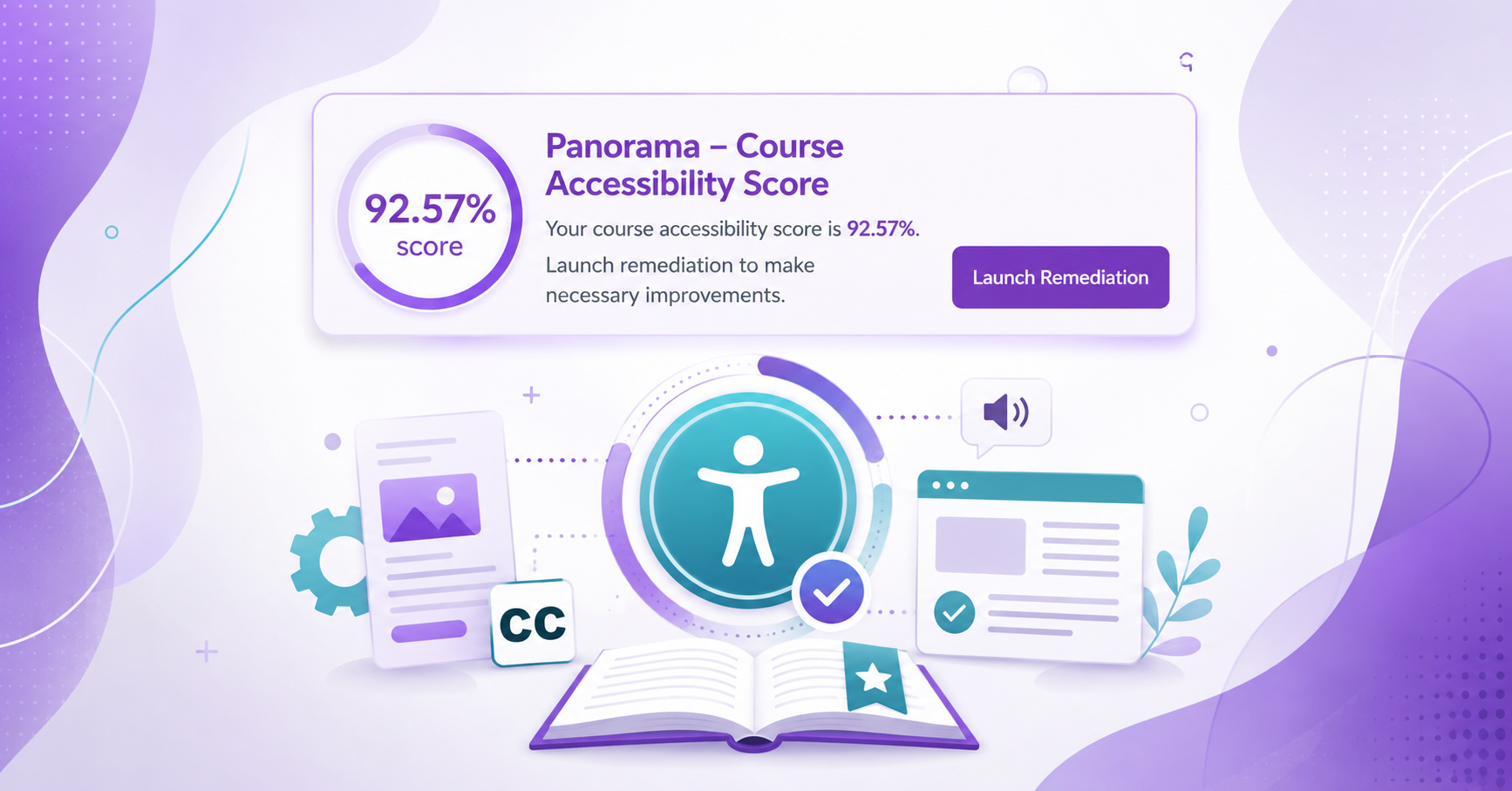
| 1:18:44 | Homepage Score Banner and Launch Remediation | Scorecard option, Launch Remediation, and working through files by accessibility score. |