Many faculty have already begun using Panorama to address accessibility in their Canvas courses, often by selecting the small Panorama icons and reviewing the Accessibility Report for guidance. While the CTLA has shared a more comprehensive Panorama guide (must be logged into college email to view), this Tech Tuesday focuses on a specific issue some faculty may encounter: not being able to access the Accessibility Report. This post explains how the Panorama icons work, why the Panorama app needs to be enabled in a Canvas course, and how enabling it unlocks key functionality that supports more effective accessibility review and remediation.
From Icons to Insight – Making Sense of Panorama in Canvas
More Tech Tuesday Posts


Panorama, Canvas, and Accessible Course Content September Webinar
This session introduces Panorama and demonstrates how faculty can use it alongside Canvas to…

Accessibility in Action Series
Join Juliet Crocco, CTLA Training and Development Consultant, throughout the academic year for practical…
When Panorama Keeps Flagging the Same Issue
Panorama is a useful starting point for identifying accessibility issues in Canvas, but not…
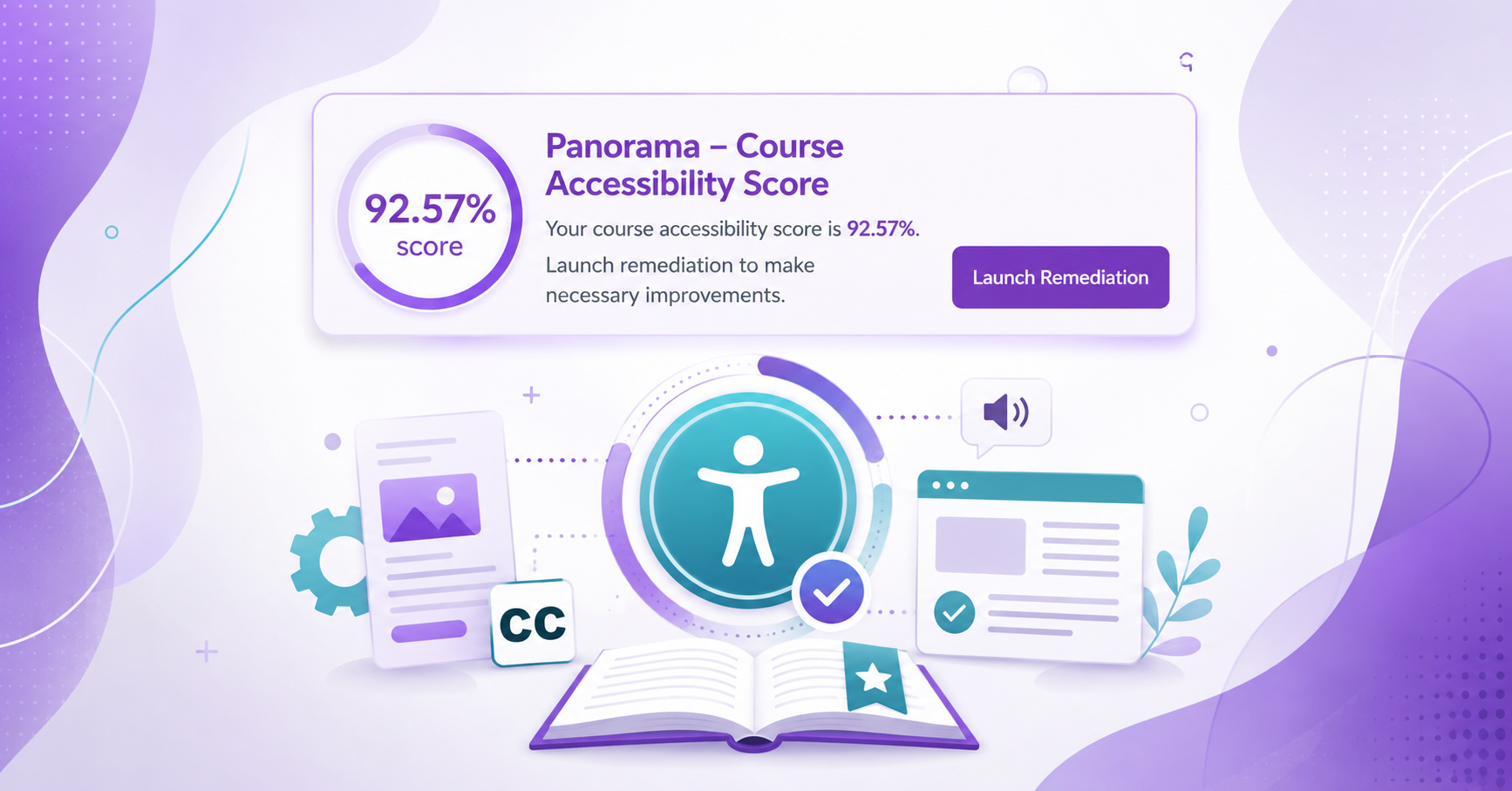
Enabling the Course Accessibility Banner with Remediation Tool on Canvas
Panorama provides several ways to find and address accessibility issues in Canvas. In addition…
Using the Panorama Accessibility Report to Remediate Files
Panorama can help guide the accessibility remediation process for files in your Canvas course,…

Grey Be Gone! Fixing Panorama Icons in Canvas
If you see a grey, unprocessed Panorama icon in your Canvas course, it means…