Now that many of us organize our courses using Modules with Pages and Assignments, it’s completely normal to upload documents directly into a page or assignment. That workflow is convenient, efficient, and honestly just how most of us work.
What also tends to happen, though, is that we upload the same document more than once. Maybe the file needed a quick edit. Maybe the page was revised. Maybe it was just faster to upload again rather than track down the original. Over time, it becomes second nature to re-upload instead of navigating to Course Files and replacing an existing document. That’s how duplicate files are born.
And let’s be honest—almost no one, upon realizing this, thinks, “I should go into Files and clean that up.” Why would we? Most of us didn’t realize there was anything to clean up. As long as the document worked and we were under our file quota, everything felt fine. We developed clever workarounds, moved on, and taught our classes.
Enter Panorama.
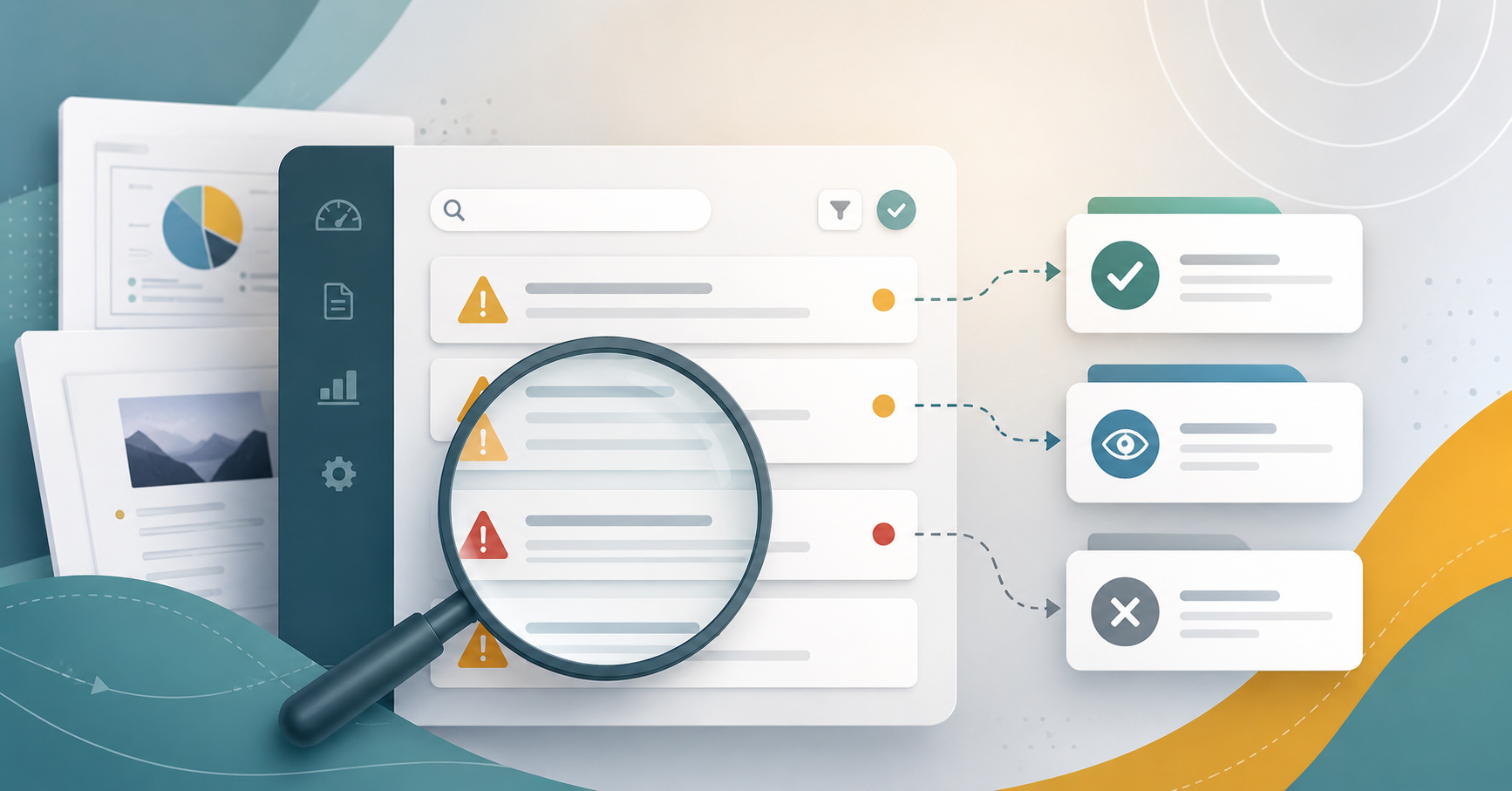
With Panorama scanning our Canvas courses, some of these long-standing habits are suddenly very visible. Files we didn’t realize still existed are now being flagged. Duplicates we forgot about are resurfacing. And it can feel a little like Panorama is sneaking around the back halls of our courses, shining a flashlight into places we didn’t know it could see.
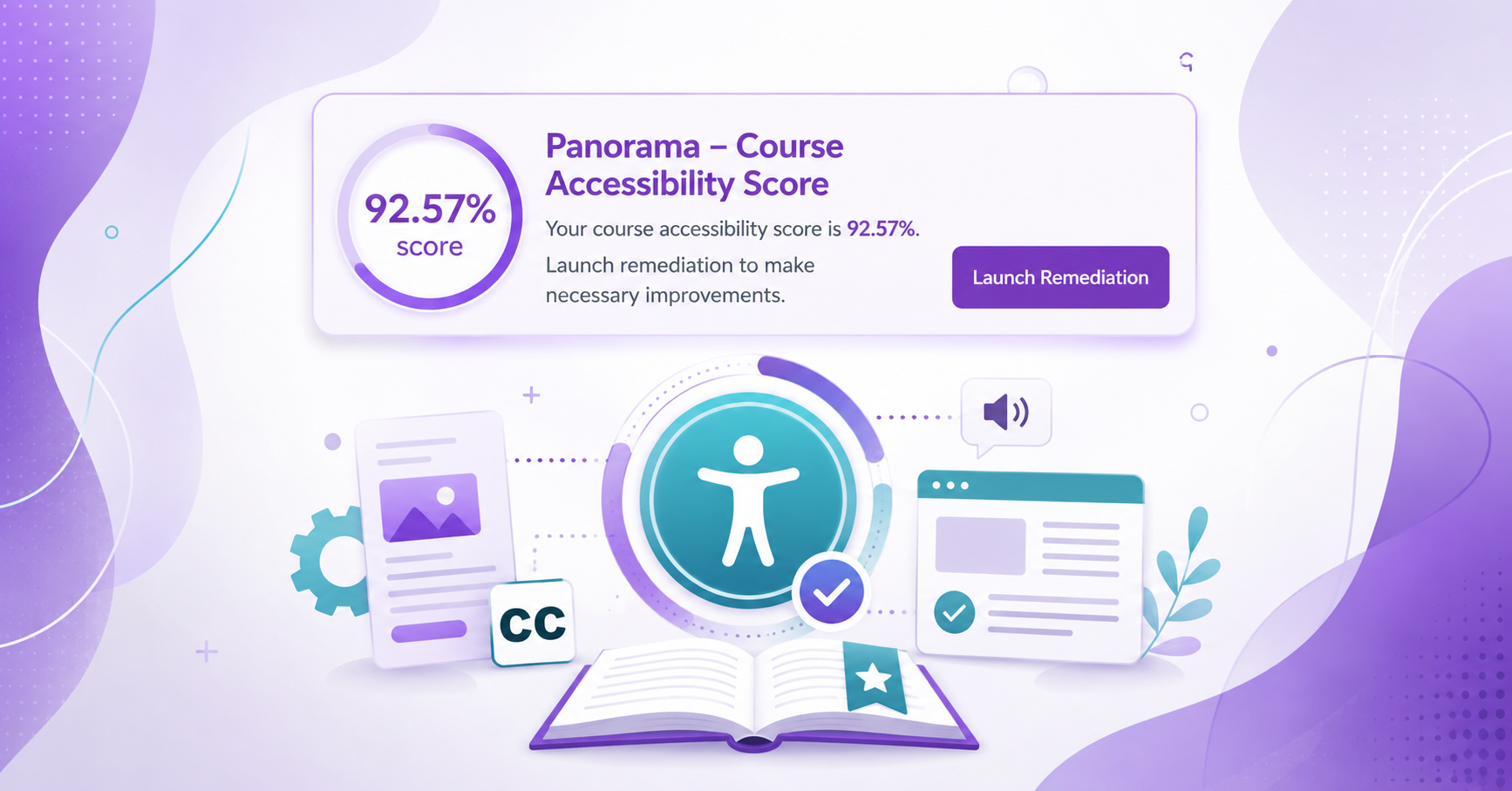
This is where the frustration often kicks in. Many faculty have carefully gone through their pages and modules, clicking each accessibility icon, fixing the issues, and doing everything right—only to run the Panorama report and see something still marked red.
Here’s the twist: you may have remediated a version of that document, but not the version Panorama is reporting. There may be three or four other copies of that same file quietly living in Course Files, still unremediated, still being scanned, and still showing up in your report.
That’s the secret life of Canvas files.
This week’s Tech Tuesday guide explains:
- How Canvas actually stores and references files
- Why deleting a file link does not delete the file
- How to clean up duplicate and outdated files safely
- How to reconcile Panorama reports so they reflect your current course
- A recommended workflow to prevent duplicate files going forward