Grading rubrics are one of the most powerful tools you can use to support student success—and they can also save you time. While our recent Tech Tuesdays have focused on accessibility in its technical forms (like alt text and semantic structure), this week we’re focusing on a different—but equally important—aspect: cognitive accessibility.
Rubrics may not make your course more accessible from a technical standpoint, but they play a vital role in inclusive course design, particularly for students with cognitive disabilities or executive functioning challenges.
Grading rubrics are one of the most powerful tools you can use to support student success—and they can also save you time. While our recent Tech Tuesdays have focused on accessibility in its technical forms (like alt text and semantic structure), this week we’re focusing on a different—but equally important—aspect: cognitive accessibility.
Rubrics may not make your course more accessible from a technical standpoint, but they play a vital role in inclusive course design, particularly for students with cognitive disabilities or executive functioning challenges.
In addition to supporting students, rubrics benefit instructors by promoting objectivity, reducing grading time, and simplifying feedback. When used in Canvas, they allow for efficient scoring and reusable comments—making them both practical and pedagogically sound.
Designing Rubrics with Purpose 📐
There are several types of rubrics—holistic, analytic, single-point—but for this Tech Tuesday, we’re focusing on analytic rubrics. These break down an assignment into multiple criteria, each with at least three performance levels (e.g., Excellent, Satisfactory, Needs Improvement).
Creating a detailed analytic rubric that clearly defines what “Excellent” looks like (and what it doesn’t) takes time and intentionality. But this process is more than just preparing to grade—it’s a key step in backward design. By articulating what high-quality student work looks like, you’re clarifying your learning outcomes and aligning your instruction to support them.
A strong rubric enhances student achievement by making expectations transparent. If you can list the elements that define excellent performance, AI can help you translate that into distinct performance levels. While tools like ChatGPT or other large language models (LLMs) can assist, Khanmigo is specifically designed to support teaching tasks—and it’s free for educators.
Use Khanmigo’s AI Teacher Tools 🛠️
Khanmigo Teacher Tools are free, AI-powered tools designed to support educators—especially helpful for rubric creation. Read about the rubric generator on Khan Academy’s blog, Grading frenzy? Khanmigo’s AI rubric maker saves you time and effort.
This 13-minute video walks through the steps shown below. The first 6 minutes cover getting started with Khanmigo tools in Canvas and using Khanmigo to create a rubric (steps outlined below). The last 7 minutes show how to copy the generated rubric into a Canvas rubric. Feel free to use the parts you need, and contact me in the CTLA if you’d like one-on-one help.
Getting Started with the Khanmigo Tools via Canvas
- Enable Khanmigo in Canvas navigation
- Add Khanmigo to your course navigation using Course Settings > Navigation.
- View guide: How do I manage Course Navigation links?
- Tip: Use a development shell to test it out. It’s also safe to enable in a live course—students will not see the tool.
- Sign Up for Free
- Open Khanmigo Teacher Tools from Canvas and click “Sign up for free.”
- Since you’re logged in as a teacher, you’ll be automatically verified—no extra steps needed.
- 18 second video showing the process (no audio)
- You’ll receive a welcome message with a prompt to set your Khanmigo password.
- Be sure to also review and accept the terms and conditions.
- Launch Khanmigo in a New Tab
- After signing up through Canvas, open Khanmigo Tools in a new browser tab.
- This gives you more screen space and a better editing experience. You should already be signed in.
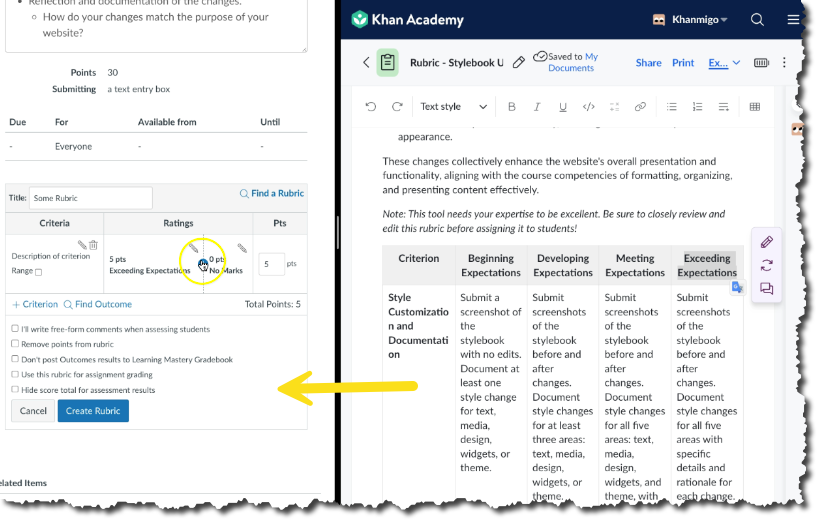
While Khanmigo doesn’t build rubrics directly inside Canvas, it’s a great tool for drafting detailed rubrics in a table that you can then copy into Canvas rubrics for grading. Currently, there is no easy way to import rubrics into Canvas. However, there are advanced methods that take the use of a Chrome extension and an Excel spreadsheet. Read about that in the Canvas community. In the future, importing rubrics from spreadsheets will be even easier.
How to Use Khanmigo to Create a Rubric
- Find the Rubric Generator
Open Khanmigo Teacher Tools and select the Rubric Generator from the tools. - Set Your Grade Level
Choose College from the grade level dropdown. - Paste Assignment Instructions
In the assignment description box, paste your full instructions. Use this space to also describe what a perfect assignment looks like—sometimes our instructions don’t make that fully clear. You can also include competencies or learning objectives here. - Add or Generate Criteria
If you’ve written a list of detailed criteria, paste them in. Otherwise, let Khanmigo generate them based on your assignment description. This is just the starting point—you’ll refine them later. - Choose Performance Levels
Select 3, 4, or 5 levels of performance. I recommend 3–4 levels for simplicity. You can always restart the process if you want to try a different number of levels. - Customize the Rubric Context
In the Overall Notes section, explain your goals for the rubric. I suggest using language at a 10th-grade reading level, especially if your course has no prerequisites. This helps Khanmigo tailor its output appropriately. - Click Start
Khanmigo will generate your initial rubric based on the information provided. - Edit, Enhance, and Refine
Use the AI chat or highlight text to edit, regenerate, or revise specific sections. You can also restart the process by exiting the rubric editor and refining your original inputs. - Export or Copy the Rubric
Export your rubric as a PDF or DOCX, or simply copy/paste it into a Canvas page or assignment for students to view. - Build the Rubric in Canvas
To use it for grading, rebuild the rubric in Canvas Rubric Builder. This allows you to select score levels per criterion and automatically calculate points. It also gives you a clear structure to add brief, personalized feedback—especially helpful for streamlining grading.
Final Thoughts 

I admit that building a rubric in Canvas can feel time-consuming—especially the first time. But the investment is worth it. A well-crafted rubric not only clarifies expectations for your students but also simplifies your grading process in the long run.
When you guide students to review the rubric before they begin their work, you give them a clear roadmap to success. They know exactly what is expected and how they’ll be evaluated. This reduces confusion, improves the quality of submissions, and fosters student accountability.
From the instructor side, rubrics provide a consistent, objective grading framework that reflects the expectations you’ve already defined. The more detailed your rubric, the more you can rely on it to grade fairly and efficiently. And because each criterion includes predefined descriptions, you also gain a head start on providing individualized, meaningful feedback—saving you time and supporting your students’ growth.
So yes, rubrics take some front-end effort—but with the help of tools like Khanmigo and Canvas, that effort can be streamlined. The result is a more inclusive, transparent, and efficient teaching and learning experience for everyone.
Resources & Further Reading

- Read: Creating and Using Rubrics | Eberly Center | Carnegie Mellon University.
- Read: What is Cognitive Accessibility as defined by the W3C?
- Podcast [Video format]: Enhancing Rubrics: Supporting Progress Monitoring and Meaningful Feedback with UDL and AI, The Education Table with Katie Novak, Ed. D.
- Advanced Canvas User: Importing Rubrics from a Spreadsheet | James Jones Canvas Guru