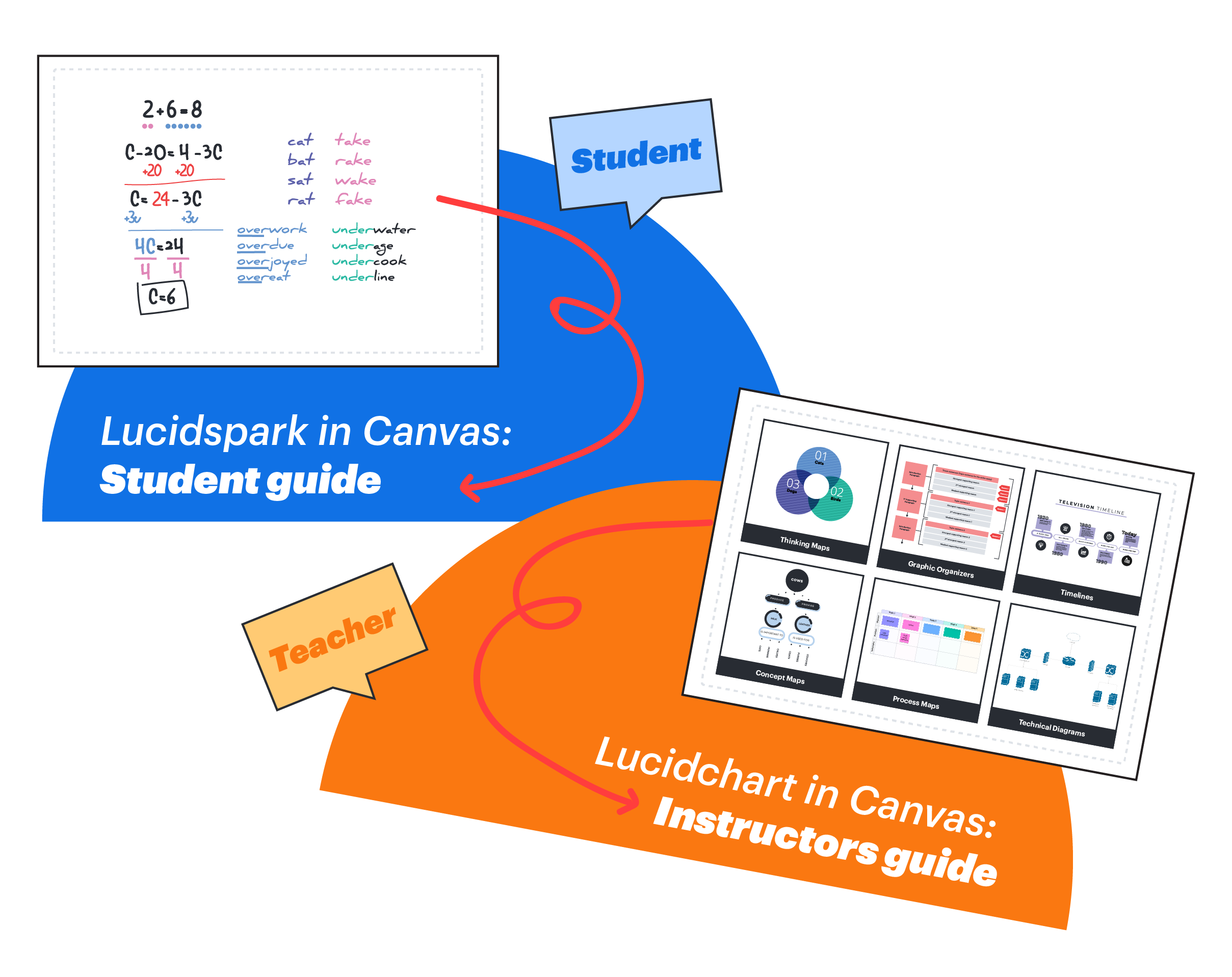
Lucid Whiteboard (Lucidspark) is now available for free in Canvas. This collaborative tool supports brainstorming, visual activities, group work, and formative assessment. We’ve curated quick-start guides, tutorials, and examples to help you decide if it fits your teaching style. Whether you’re embedding it in a page or setting up an interactive assignment, these resources walk you through the setup.
What is Lucid Whiteboard?
Lucid Whiteboard, also known as Lucidspark, is an interactive virtual whiteboard integrated into Canvas through the Lucid Education Suite. It offers collaborative spaces for students and instructors to brainstorm, annotate, organize ideas, and work together in real time.
If you previously used Google Jamboard or Padlet, Lucid is a strong replacement. It provides similar functionality with enhanced features like breakout boards, customizable templates, and integration with Lucidchart for intelligent diagramming. Students can complete and submit collaborative work via Canvas assignments, while instructors can track participation, give feedback in SpeedGrader, and embed visual activities directly in Canvas pages or discussions.
Lucid supports a variety of use cases:
- Group projects
- Icebreakers
- Visual discussion prompts
- Freehand whiteboarding
- Interactive diagrams and flowcharts
- Formative assessments
Lucid Whiteboard helps transform Canvas into a more visual, active learning space by supporting real-time collaboration and creativity.
What can you use Lucid Whiteboard for in Canvas?
Below is a list of resources with brief descriptions to help you explore how Lucid can support your course:
- Introduction to Lucid Education Suite in Canvas – Overview of Lucid Education Suite features and benefits for both instructors and students.
- Creating Assignments with Lucid – Walkthrough on how to incorporate Lucid into Canvas assignments. Includes video support.
- Adding a Visual Activity to a Page – In this video, learn how to embed a Lucid-based activity like an icebreaker into a Canvas page.
- Dynamic Formative Assessment in Higher Ed – Ideas for using Lucid as an interactive check for understanding.
- Course Collaboration Example – See how Dr. Kaptain uses Lucid in his online course. Includes a template and webinar.
- Collaborative Group Assignments – Lucid doesn’t have a group assignment type, but this guide shows how to make it work with a few steps.
- Student Independent Use – Students can access Lucid directly through Canvas once the tool is enabled in your course navigation.
Getting Started with Lucid (Whiteboard) in Canvas
Watch a 2-minute walkthrough on getting started that goes over steps 1-3.
- Enable Lucid (Whiteboard) in Canvas by moving it up to the viewable items in the course navigation. View guide: How do I manage Course Navigation links?
- Sign up or sign in to Lucid after launching the tool.
- Explore the ways you can use Lucid!
10 Tips for Working in Lucid Whiteboard
Watch: 10 tips in 10 minutes (Lucidspark) by Vanessa Cicero (also embedded below). Use the timestamps to find what most interests you.
- Navigation (0:09): Use two fingers (trackpad) or right-click + scroll wheel (mouse) to pan and zoom the canvas.
- Quick Stickies (0:37): Double-click on the canvas to instantly add sticky notes.
- Shapes & Connections (0:50): Drag shapes from the toolbar, format them, and connect them using lines and shortcut menus.
- Locking Content (1:46): Lock objects to prevent editing or moving—use advanced lock settings for more control (e.g., lock position but allow content editing).
- Frames & Table of Contents (2:40): Organize boards with frames and use the Table of Contents for easy navigation.
- Paths (3:27): Create guided learning paths through frames; share them via link with set permissions.
- Quick Tools & Banks (4:55): Customize toolbars with sticky note banks, shape banks, and shortcuts (e.g., highlighter, timer, Loom integration).
- Zoom to Content (7:11): Click the zoom percentage to fit all content on screen—useful for reviewing and locking everything at once.
- Facilitator Tools (7:44): Assign yourself as facilitator for added controls, including “Take the Lead” and hiding cursors for focus.
- Sharing Options (8:46): Share boards via link, with permissions (edit, view, comment) or join ID for mobile access. Manage users and permissions directly.